

Deepfake Maker Image to Video AI: Turn Any Photo into a Scroll-Stopping Video
👉 Learn how Deepfake Maker image-to-video AI converts photos into cinematic videos with prompts, tips, comparisons (Runway, Pika, Kaiber, HeyGen), and best practices.
image for illustrative purpose
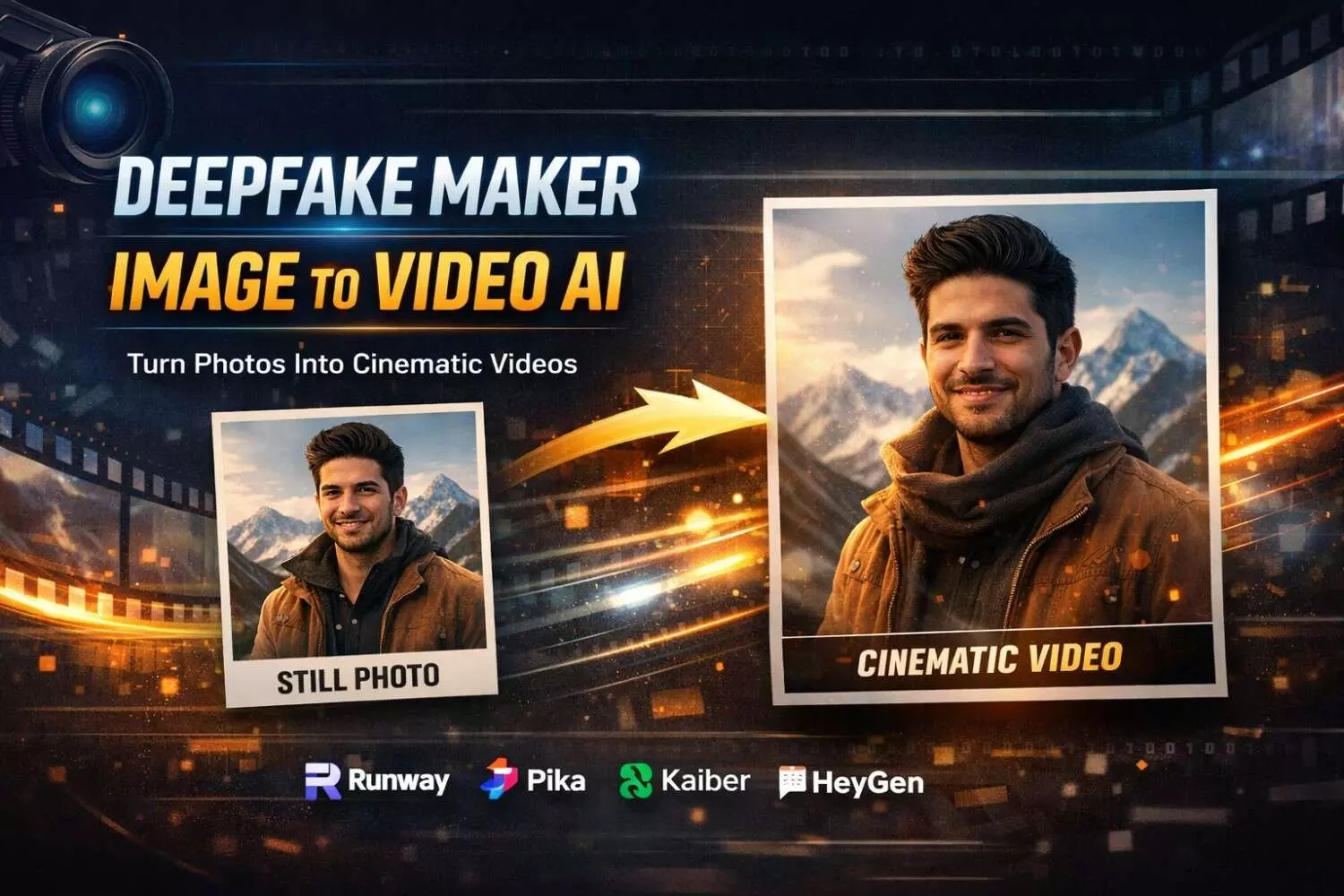
If you’re trying to grow on Reels, Shorts, or TikTok, you’ve probably felt it: static images don’t get the same “stop-the-scroll” attention as motion. But traditional video editing takes time—timelines, keyframes, exports, re-edits, and endless “one more tweak” requests.
That’s exactly why deepfake maker image to video AI is becoming a go-to workflow for creators, marketers, and small teams. With Deepfake Maker, you can turn a single photo into a short, cinematic clip using a simple prompt—no installs, no editing skills, and no complicated tools.
In this guide, I’ll show you how to use deepfake maker image to video AI in a practical, repeatable way—plus prompt ideas, quality tips, and a quick competitor comparison (Runway, Pika, Kaiber, HeyGen) so you can pick the workflow that actually fits your goals.
Table of Contents
What “deepfake maker image to video AI” really does
Why photo-to-video is the fastest content upgrade right now
How Deepfake Maker works (the simple workflow)
Prompt playbook: copy/paste prompts that look natural
Quality checklist: how to avoid weird motion
Best use cases (creators + marketing + ecommerce)
Deepfake Maker vs Runway vs Pika vs Kaiber vs HeyGen
Safety + ethics (don’t skip this)
FAQ: deepfake maker image to video AI
What “deepfake maker image to video AI” really does
At its core, deepfake maker image to video AI converts a still image into a short video by generating realistic motion—think subtle camera movement, gentle depth, and smooth pans/zooms—so the image feels “alive.”
Instead of manually animating layers in a video editor, you upload a photo, write a prompt describing the motion or vibe, and the model creates the clip for you. Deepfake Maker’s page describes this as turning one image into a cinematic clip without timelines or complex apps.
The best part: deepfake maker image to video AI isn’t only for “art.” It’s incredibly practical for:
social posts that need motion to perform
product photos that need an ad refresh
posters/flyers that should become short promos
website hero loops that look premium
Why photo-to-video is the fastest content upgrade right now
A lot of people think video growth requires filming more. In reality, many brands already have strong assets—product shots, portraits, travel photos, posters, banners. They’re just stuck in still form.
deepfake maker image to video AI lets you reuse what you already have:
Make one hero photo into 5 variations (different motion + pacing)
Turn a campaign poster into a story ad
Create “micro motion” that looks native in vertical feeds
Deepfake Maker highlights this exact advantage: generating multiple variations quickly and iterating without long editing cycles.
How Deepfake Maker works (a simple, repeatable workflow)
Deepfake Maker keeps deepfake maker image to video AI straightforward: upload → prompt → generate → download.
Step A: Upload your image
Start with a clear, high-resolution photo. Deepfake Maker specifically notes it works well with product shots, portraits, travel images, artwork, and brand visuals.
Step B: Enter a prompt (tell the motion what to do)
This is where you guide the result: cinematic push-in, gentle parallax, slow pan, etc. Deepfake Maker explicitly supports using a prompt to guide the vibe and output.
Step C: Choose duration + resolution + (optional) background music
On the tool interface, you can set duration, choose resolution (540p / 720p / 1080p), and even toggle background music before generating.
Step D: Generate & download
Deepfake Maker states you can generate and download the output and use it anywhere—calling out “without a watermark” on the page.
Why this matters: a clean workflow is a feature. If you want to post daily (or ship weekly ad refreshes), the tool that removes friction wins—especially for deepfake maker image to video AI where speed + iteration beats “perfect but slow.”
Prompt playbook: copy/paste prompts that look natural
A lot of people get weird results because they write prompts that are too dramatic. For most real-world content, the best deepfake maker image to video AI prompts are subtle.
Here are ready-to-use prompts you can paste into Deepfake Maker (then tweak one phrase at a time):
Cinematic, realistic motion (safe default)
“Slow cinematic push-in, gentle camera movement, natural motion, stable details, realistic lighting.”
“Subtle parallax depth, smooth zoom, no distortion, preserve face and edges.”
“Slow left-to-right pan, slight depth of field, film-like smooth movement.”
Product / ecommerce ads
“Close-up reveal, slow zoom into product details, clean motion, keep logo sharp.”
“Smooth vertical pan from top to bottom, highlight texture, premium commercial feel.”
“Minimal motion, gentle push-in, crisp edges, stable branding, ad-ready look.”
Travel / lifestyle photos
“Soft cinematic movement, slight zoom, natural depth, calm vibe, stable details.”
“Slow pan across scenery, subtle motion in background, realistic camera drift.”
Posters / flyers / announcements
“Make the poster feel animated with a slow zoom and gentle camera shake-free motion, keep text readable.”
“Smooth push-in on headline area, subtle motion, maintain sharp typography.”
Quick rule: if you want consistent results, change only ONE thing per variation (zoom direction, speed, or vibe). That’s how creators use deepfake maker image to video AI to find a “winning style” quickly.
Quality checklist: how to avoid weird motion
Even the best deepfake maker image to video AI output depends on your input.
Deepfake Maker’s FAQ points out what works best: clear images, defined subject, enough background detail, clean edges, and not overly cluttered compositions.
Use this checklist:
Use a clear subject (face/product should be obvious)
Avoid extreme blur (motion on blur becomes mush)
Keep text big and readable (especially posters)
Leave some background space (AI needs room to “move” the camera)
Don’t over-prompt (subtle prompts = stable output)
Export at 720p or 1080p when you plan to repost or run ads (Deepfake Maker offers both)
If you’re creating for paid ads or client work, that stability is the difference between “looks premium” and “looks AI.”
Best use cases for deepfake maker image to video AI
Deepfake Maker lists multiple practical use cases—especially social growth, posters to clips, ad refreshes, and seasonal promos.
Here are the versions that consistently perform in real workflows:
Use case 1: Social content from a single photoshoot
One shoot → 10 short clips → a week of posts.
Create variations in deepfake maker image to video AI by changing:
“slow push-in” vs “slow pan”
“cinematic” vs “bright commercial”
duration (shorter often performs better)
Deepfake Maker explicitly frames this as making still photos feel native to vertical feeds and iterating quickly.
Use case 2: Poster → promo clip (the fastest campaign asset)
Event flyers and announcements already contain the message. With deepfake maker image to video AI, you add motion so it’s not ignored in stories.
Deepfake Maker calls out this exact workflow for flyers, webinars, seasonal sales, and app updates.
Use case 3: Ecommerce creative refresh (beat ad fatigue)
Ad fatigue is real. Turning product images into motion is a simple way to refresh without reshooting.
Deepfake Maker highlights using image-to-video to create premium-looking motion ads and rotate creatives weekly.
Use case 4: Seasonal promos (holiday speed)
When timing matters (Black Friday, Christmas, Valentine’s Day), speed wins. Deepfake Maker directly mentions seasonal/holiday promos as a strong fit.
Deepfake Maker vs Runway vs Pika vs Kaiber vs HeyGen (quick comparison)
There are lots of tools in the image-to-video space, but they’re not all built for the same job.
Runway
Runway’s Gen-3 Alpha is positioned to power text-to-video and image-to-video, along with more advanced control modes and safeguards.
Best for: creators who want advanced controls and a broader generation suite.
Pika
Pika positions itself as an “idea-to-video” platform and emphasizes expressive outputs (even “make your images sing” style experiences).
There are also implementations of Pika image-to-video that support up to 1080p depending on the stack you use.
Best for: playful, stylized outputs and experimental content.
Kaiber
Kaiber’s documentation describes image-to-video options (e.g., generating video from images with specific durations/models depending on the mode).
Best for: creators who want a broader “studio” workflow and model options.
HeyGen
HeyGen focuses heavily on business video workflows; their image-to-video tool describes: upload an image, add script, generate video.
Best for: avatar/script-driven content and business explainers.
Where Deepfake Maker stands out
If you want a fast, simple, browser-based workflow for deepfake maker image to video AI, Deepfake Maker leans into:
3-step simplicity (upload → prompt → generate/download)
Resolution choices (540p/720p/1080p)
Optional background music toggle
No-install workflow (runs in-browser)
A strong emphasis on smooth, stable motion and a privacy-first approach
In short: some platforms are “creative suites.” Deepfake Maker is the one you open when you want deepfake maker image to video AI results quickly—then post.
Safety + ethics (don’t skip this)
Any deepfake maker image to video AI workflow should be used responsibly:
Only upload content you own or have permission to use
Don’t impersonate real people in misleading ways
Be extra careful with faces, clients, and brand assets
If it’s for commercial use, confirm licensing/usage rights
Deepfake Maker’s FAQ explicitly encourages responsible use—especially when faces are involved—and warns against using someone’s likeness without consent.
FAQ: deepfake maker image to video AI
What is deepfake maker image to video AI best for?
deepfake maker image to video AI is best for turning a single strong image into a short clip for social posts, ads, promos, and website loops—without editing tools. Deepfake Maker specifically frames it as cinematic motion without complex apps.
Can deepfake maker image to video AI output in HD?
Yes. Deepfake Maker includes resolution options including 720p and 1080p (plus 540p), which is useful for reposting and ad workflows.
Do I need editing experience to use deepfake maker image to video AI?
No. The whole point of deepfake maker image to video AI is removing timelines and keyframes—Deepfake Maker is built around a simple upload/prompt/generate flow.
What kinds of images work best?
Use clear images with a defined subject and enough background detail. Avoid very blurry images or extremely busy patterns for more stable motion.
Can I add music?
Deepfake Maker’s tool UI includes a Background Music option you can toggle before generating.
Final thoughts: the easiest way to post more video (without filming more)
If you’re sitting on a folder of great photos, you’re already halfway to a strong video pipeline. The missing piece is motion—and that’s exactly what deepfake maker image to video AI delivers.
If you want a workflow that’s fast, browser-based, and built for iteration, Deepfake Maker is a practical pick: upload your image, write a short prompt, choose resolution, generate, and ship.
When you’re ready, open Deepfake Maker and create your first variation. Then create three more with tiny prompt changes. That’s how deepfake maker image to video AI turns “one good photo” into a week of content.